A Collection of Useful Linux Commands
A collection of Linux commands for files, processes, text search, IPC, and remote work.
Reading a file backwards
tac is cat backwards: it prints a file starting from the last line.
Getting a file’s absolute path
readlink -f filenameYou can also use realpath, which needs to be installed separately.
Removing duplicate lines
You can use uniq, but remember to sort first: uniq only handles adjacent duplicate lines. This is an easy trap. sort -u has no such problem and handles non-adjacent duplicates.
sort -u file# orsort file | uniq -ud
# These only handle adjacent linesuniq -d file  # Print duplicate lines in file, once each; do not print unique linesuniq -u file  # Print only unique lines in file
Checking the number of threads
NUM=`ps M <pid> | wc -l | xargs` && expr $NUM - 1Getting a command result from a remote host
ssh remote_host "ls > /tmp/file_on_remote_host.txt"Looking up program paths and file types
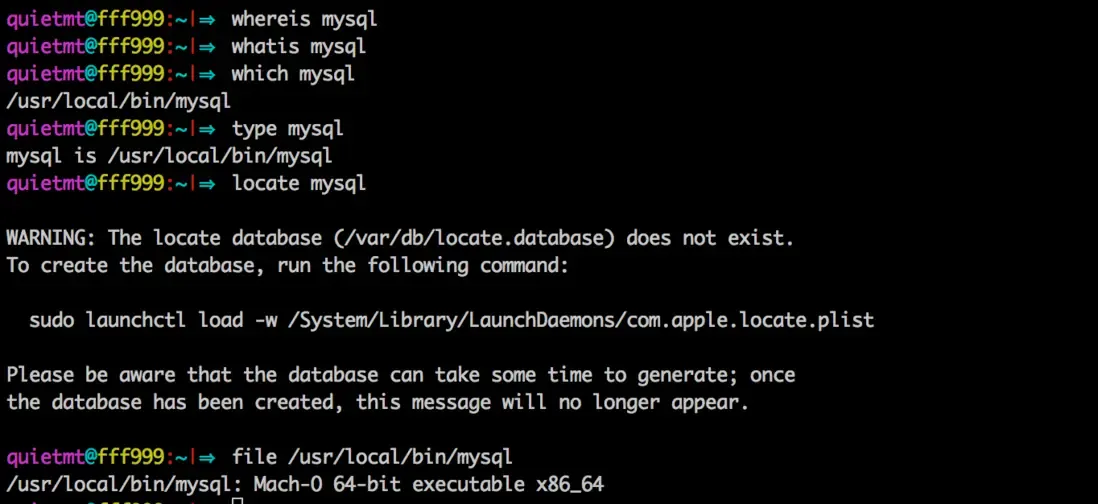
whichshows the location of an executable.whereisshows the location of a file.whatisexplains what a command does.locatelooks up file locations through its database.typeshows the type of a command.findactually searches the disk for file names.fileshows a file’s type.
Listing and killing processes
The usual choice is ps -ef followed by grep. To see a process and its children, pstree is better because it shows the parent-child relationship clearly.
If all you need is a PID—usually because you plan to kill the process—use pgrep, which filters out the grep process. pkill works similarly. By default, though, both commands match the program name. For Python programs, that can be the path to the Python executable itself, for example:
/usr/local/Cellar/python/2.7.11/Frameworks/Python.framework/Versions/2.7/Resources/Python.app/Contents/MacOS/Python
To make sure you do not kill the wrong process, normally use -l to print the program name and -f to match the full command line:
pgrep -fl programpkill -f -9 programFinding a process’s ports from its PID
lsof -Pan -p PID -iGetting a program name from its PID
-p selects process information and -o specifies the output format:
ps -p pid -o comm=Viewing file contents
Usually you do not check a file’s size before opening it, so cat is not always suitable. vim is inconvenient if you only want to inspect a file. more displays one screen at a time; press space to move through pages and q to exit. less adds upward scrolling. Together with cat and grep, both are very useful:
cat novel.txt | grep 'xxx' | moreFor compressed files:
zcat novel.gzip | grep 'xxx' | moreFor several compressed files:
zcat novel-[1234].gzip | grep 'xxx' | moreShowing the local host name
On test and production environments, you often need the host name:
hostnameOr the network node name:
uname -nKilling several processes with killall
killall followed by a program name kills all processes for that program. Like kill, it sends SIGTERM by default. It is useful for cleaning up several leftover child processes. I still recommend SIGKILL, the -9 option, to kill the whole process tree:
killall -9 programnameThis is equivalent to:
ps -ef | grep programname | awk '{ print $2 }' | xargs kill -9The current grep process is gone by the time the command runs, so it is not killed. That is not a big problem.
Running a program in the background
-
Use
nohupto ignore hangup signals, redirect standard error to standard output, and discard standard output:Terminal window $ nohup program > /dev/null 2>&1 & -
Use
setsidso the current program is not a child of a terminal that receives HUP. Its parent will beinit, and it cannot be seen withjobs -l:Terminal window $ setsid program > /dev/null -
Put one or more commands in
()to run them in a subshell:Terminal window $ (program > /dev/null &)
Clearing the Memcached cache
$ echo 'flush_all' | nc localhost 11211Killing matching processes in bulk
Remember to remove the grep process from the process list:
$ ps -ef | grep program | grep -v grep | awk '{print $2}' | xargs kill -9Timing a command with time
Put the command after time:
$ time python program.pyThe result may look like this:
real 0m1.003s
user 0m0.002s
sys 0m0.005s
real: the program’s elapsed running timeuser: total CPU time in user spacesys: total CPU time in kernel space
Copying selected files between servers
For example, to copy every .sh file, use xargs -i with {} as a placeholder for the preceding command’s standard output:
locate *.sh | xargs -i scp {} xxxx@xxxx:xxxxOr:
find / -name '*.sh' -exec scp {} xxxx@xxxx:/xxxx \;You can also use rsync. It is a little more involved, so I will not expand on it here.
Searching directories with grep while excluding directories
Unlike find, grep searches file contents, not file names. The examples below search file contents for http.
One directory
grep -E "http" ./ -R --exclude-dir=.gitSeveral directories
grep -E "http" . -R --exclude-dir={.git,res,bin}Several file types
Exclude files with Java and JavaScript extensions:
grep -E "http" . -R --exclude=*.{java,js}-E uses extended regular expressions (ERE); otherwise basic regular expressions (BRE) are used, where characters such as slashes need more escaping. -P means Perl regular expressions. In order of supported features: -P > -E > -G.
Searching for matching text with grep
-A means after. For example, show the matching line and the next three lines:
grep -A 3 'pattern' test.logUse -B for the three lines before. To show three lines before and after the match, use -A 3 -B 3, or:
grep -C 3 'pattern' test.logStop after the first matching line:
grep -m 1 'pattern' test.logMatch several keywords, then stop after the first matching line:
grep 'pattern1' test.log | grep 'pattern2' -m 1Finding files
Finding a particular file
Using the current directory, represented by ., as an example:
find . -name 'test.txt'Finding file names containing a string
Use * for a wildcard match, and quote it:
find . -name '*mysql*'Working with inter-process communication
Print every IPC mechanism on the current system:
ipcsUse ipcrm to remove one.
Setting a temporary environment variable
Sometimes you set an environment variable as an ordinary user but need sudo to install software. Then the program may say the variable is not set. The simple way is to put the variable assignment directly after sudo:
sudo LD_LIBRARY_PATH=/opt/intel/mkl/lib/ia32:$LD_LIBRARY_PATH LD_PRELOAD=/opt/intel/mkl/lib/ia32/libmkl_core.so python -c "import numpy"